How to record your Mac screen with internal audio
On macOS 15 and later, Reelbird records the sound your Mac plays (system audio) together with your screen and microphone, with no virtual audio driver to install. It's free and open source. Here's how, start to finish.
Before you start
- A Mac on macOS 15 or later. System audio capture comes from Apple's ScreenCaptureKit, which records it on the same clock as the screen.
- Reelbird installed. It's built from source in a few minutes: see Download.
Steps
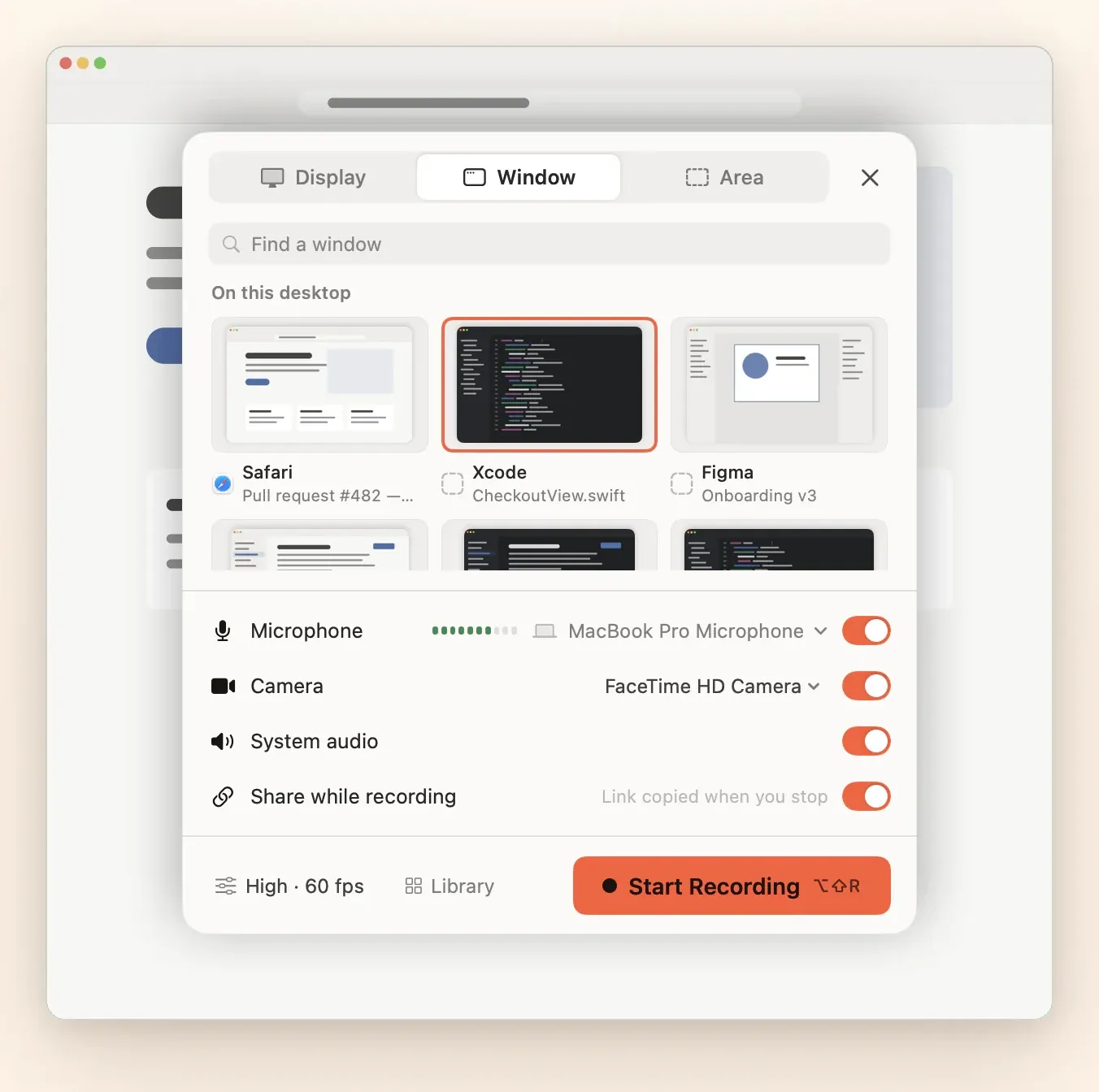
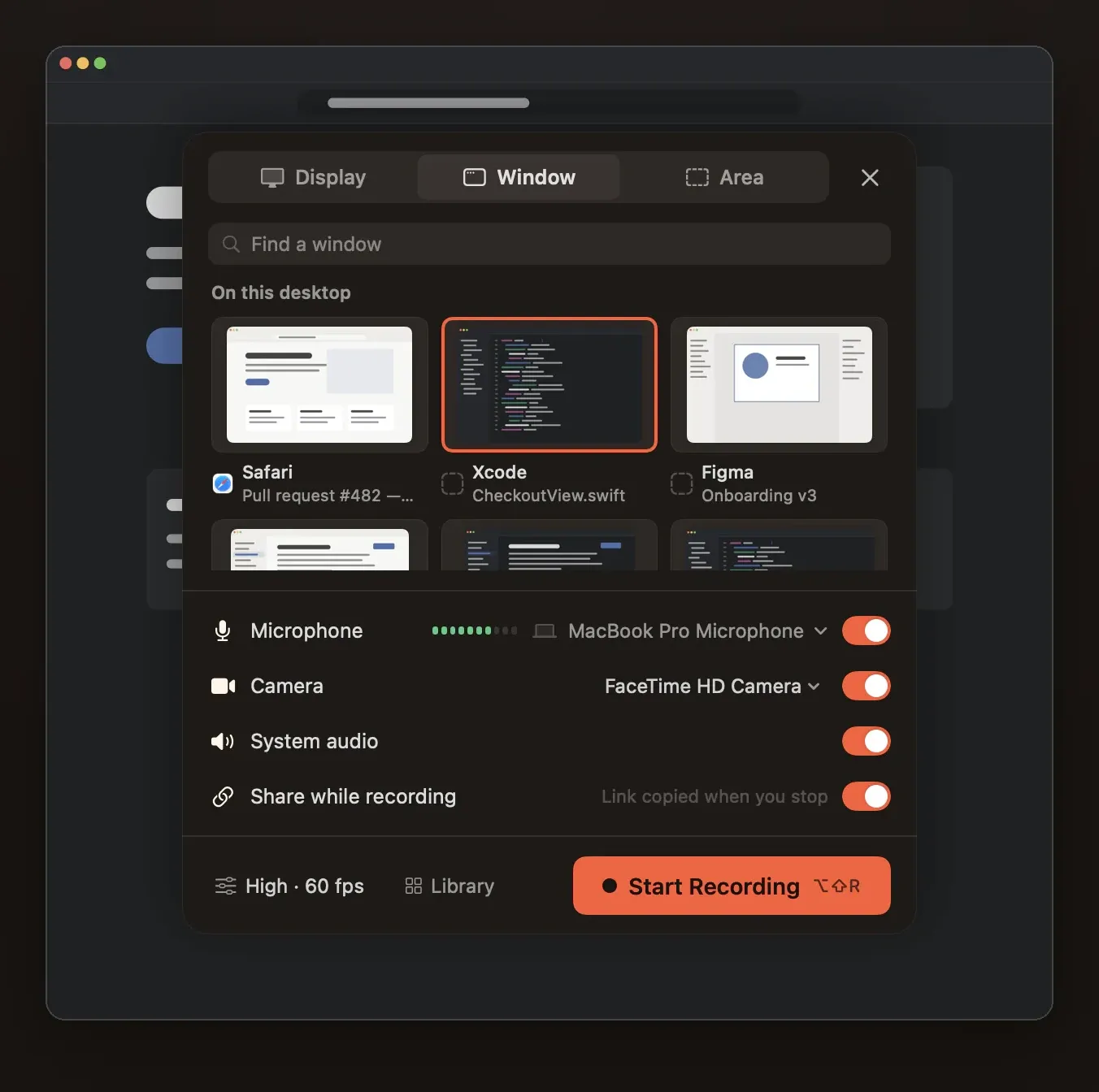
- Open the picker. Press ⌥⇧R in any app, or click the robin in the menu bar and choose a new recording.
- Choose what to record: a whole display, one window, or an area you drag out.
- Turn on System audio. Turn on Microphone too if you're narrating, and pick the microphone from the menu next to it. The level meter moves when it hears you.
- Allow Screen & System Audio Recording the first time macOS asks, then choose Quit & Reopen in Reelbird. The permission only applies after a restart.
- Start Recording. Return starts, Esc closes the picker. A short countdown runs; Return, Space or a click skips it.
- Stop with ⌥⇧R or the Stop button. The take opens in the editor.
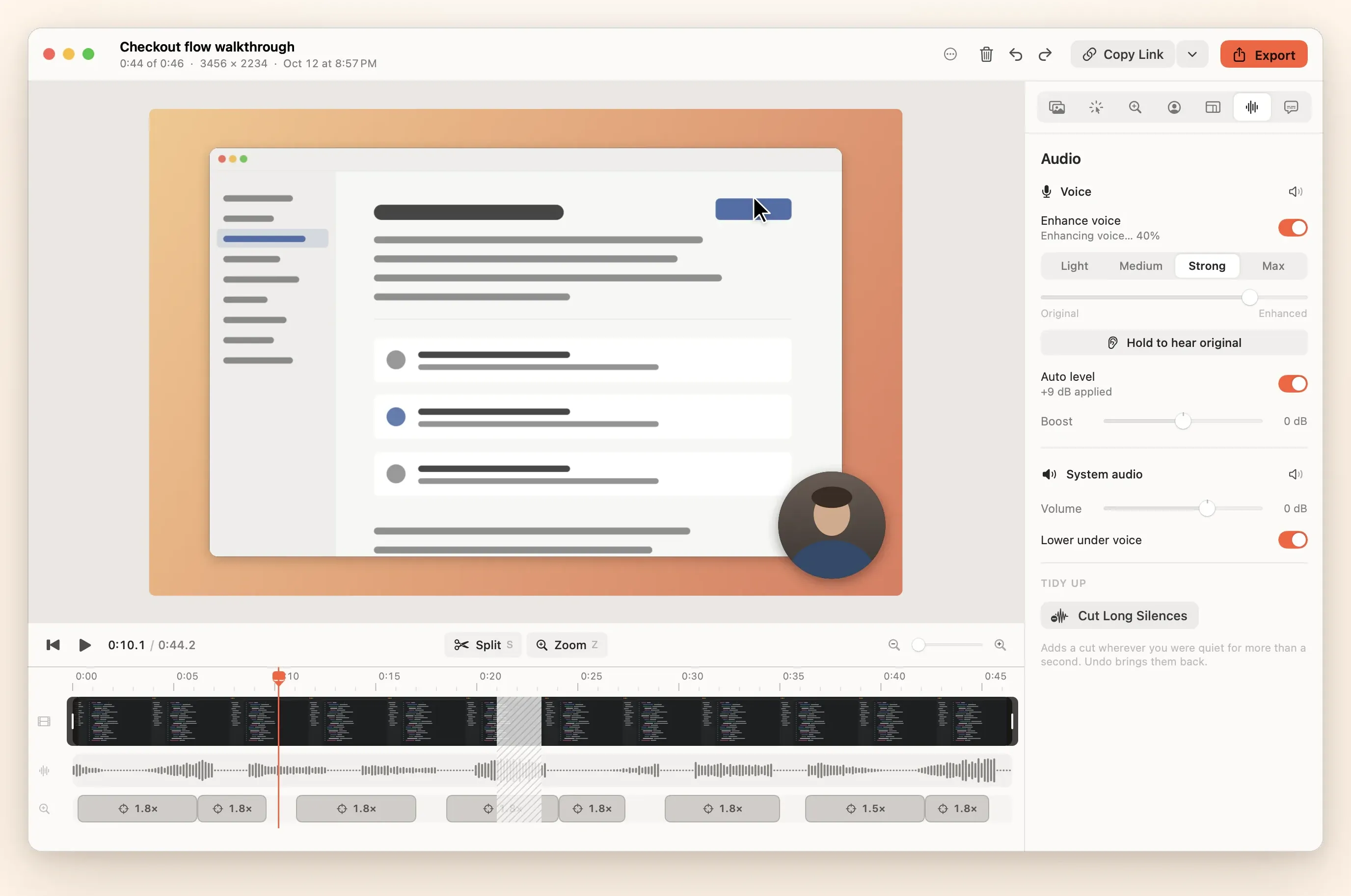
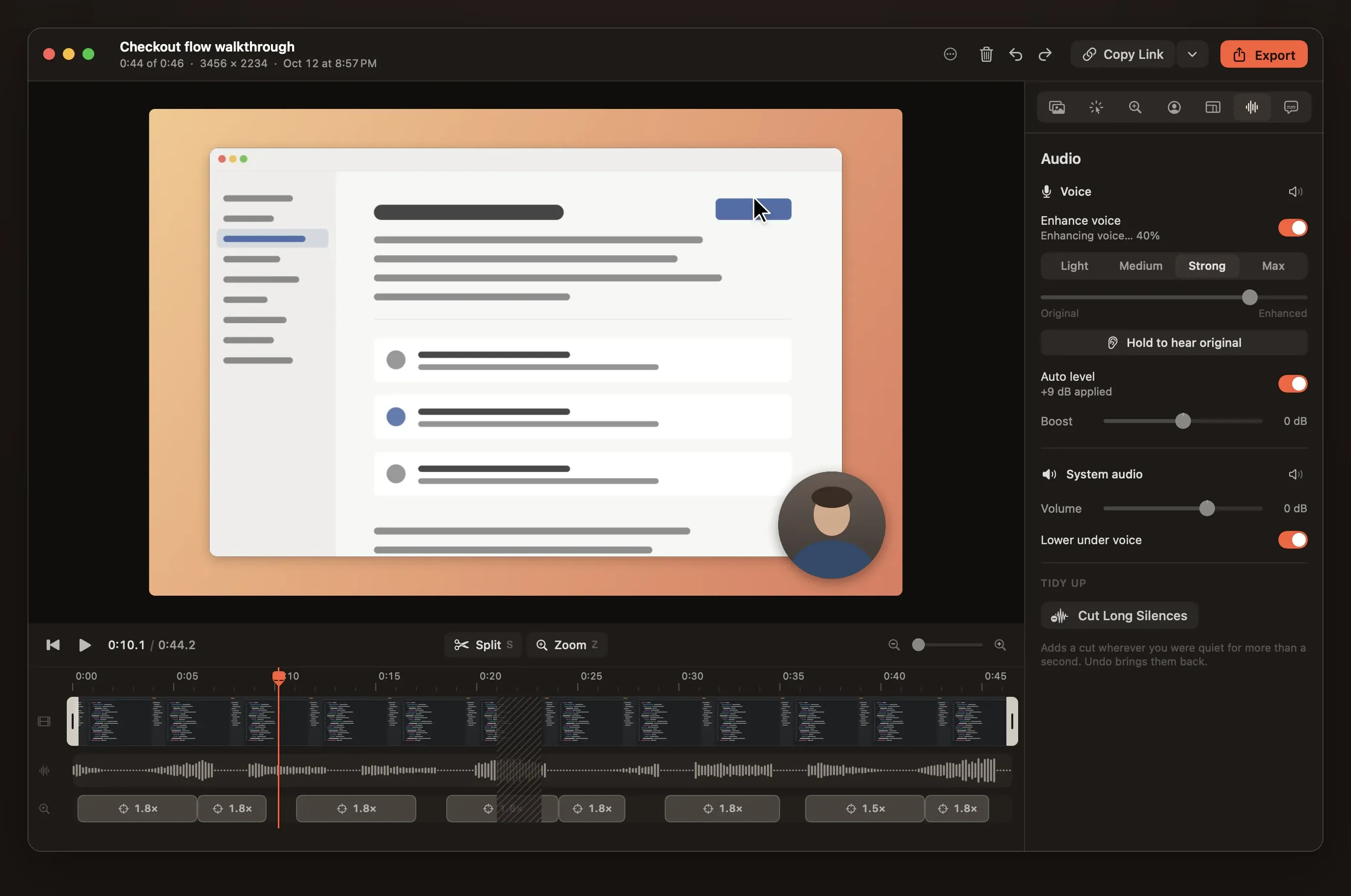
- Balance the sound in the Audio inspector (⌘6): lower or mute system audio, leave ducking on so it dips while you speak, and let auto level set your voice.
- Export with ⌘E (MP4, HEVC, ProRes or GIF), or share a link.
Why separate tracks help
Reelbird keeps system audio and your microphone as separate tracks. If a notification chimes or the music is too loud, you can turn system audio down or off after recording without touching your voice. Ducking lowers system audio by about 12 dB while you speak.
From the terminal
The command line tool records the same way. Run reelbird sources to see IDs, then record a display for a set time. When you record from a terminal, macOS asks for Screen Recording permission for the terminal app, not for Reelbird.
reelbird sources
reelbird record --display 1 --duration 30
Caveats
- Some protected video, such as content from streaming services, may record as black or silent. That's macOS, not Reelbird.
- Bluetooth headsets switch to a low-quality mode while their microphone is in use. For narration, a wired or built-in microphone sounds better.
- macOS asks every so often to confirm apps that record the screen. Choose to keep allowing Reelbird.
- If the recording bar warns that the microphone is silent, check that the right input is selected and not muted.
Published 12 October 2026.
Get Reelbird — free Download or build from source. macOS 15 or later. Mac only.